
How to Print an iPhone Live Photo So It Still Moves
Stories AR team
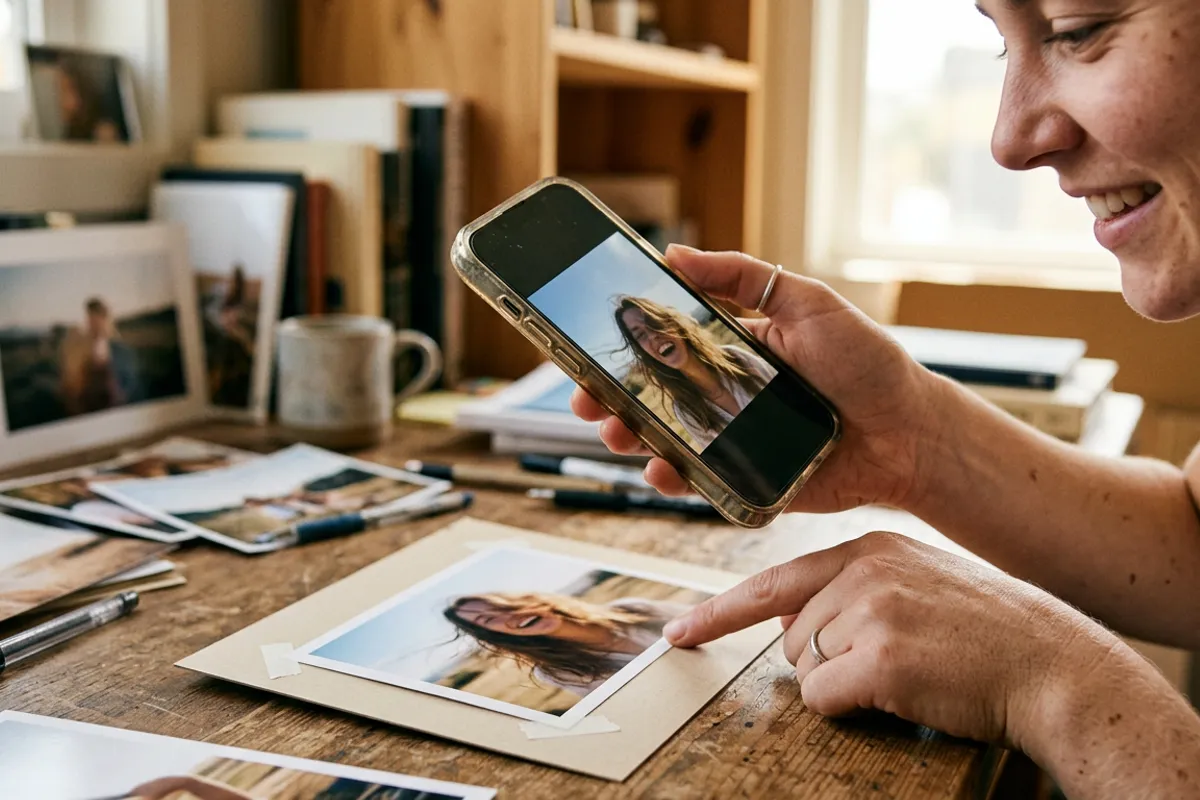
Every iPhone shoots Live Photos by default: a still image plus about three seconds of motion and sound around it. On the phone the moment moves; on paper it dies. But there is a way to print a Live Photo and keep the motion: turn it into a printed AR photo that plays its video in the browser when someone points a phone at it. Here is exactly how, plus the honest differences and limits.
Quick answer
You cannot print motion onto paper directly, but you can keep it: export the Live Photo as a video and a still frame, upload the pair to Stories AR, and print the still with the QR code. When anyone scans the code and points their camera at the print, the browser plays the moment — with sound, on any phone, no app needed.
Key takeaways
- An iPhone Live Photo is a still plus roughly 3 seconds of video with sound — both parts export separately.
- The printed AR photo plays the video in the browser via QR scan; Apple's ecosystem is not required to view it.
- Three seconds is short: a stronger option is pairing the printed frame with a longer clip from the same scene.
- The QR code never changes — you can swap in a better video later without reprinting.
- Detailed frames print and track best; a blurry motion frame makes a weak trigger image.
Apple Live Photos vs printed living photos
The two things share a word but not a mechanism. An Apple Live Photo is a file format: a still image plus about three seconds of video and sound, viewable inside Apple's ecosystem — you press on the photo and it moves. Send it to an Android phone or print it, and only the still survives.
A printed living photo works the other way around: the paper print is the anchor, and the video lives on the web. A QR code on or near the print opens the AR viewer in any browser — Safari on iOS, Chrome on Android — and the video plays anchored on top of the printed image. No app, no Apple dependency.
So the honest answer to "can you print a Live Photo": you print the still, and you re-attach the motion through AR. The result is arguably better than the original — anyone can view it, not just people you AirDrop it to. The full mechanics are on the live photo printing page.
Step 1 — export the video and the still from your iPhone
First, get the two files out of the Live Photo. For the video: open the Live Photo in the Photos app, tap the share icon and choose "Save as Video" — you get a regular video clip of about three seconds, sound included.
For the still: open the Live Photo, tap Edit, then the Live icon, and choose the sharpest frame as the key photo — or simply use the photo as shot. Export it at full resolution; this is the image you will print, so quality matters.
Pick a key frame that is sharp and detailed. AR tracking locks onto texture and contrast, so a crisp frame with faces or structure makes a reliable trigger, while a motion-blurred frame makes a poor one.
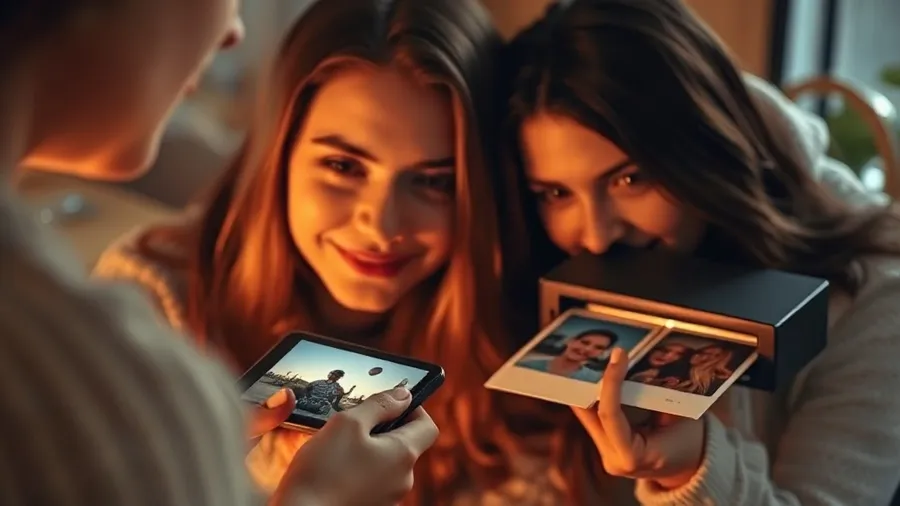
Step 2 — upload the pair to Stories AR
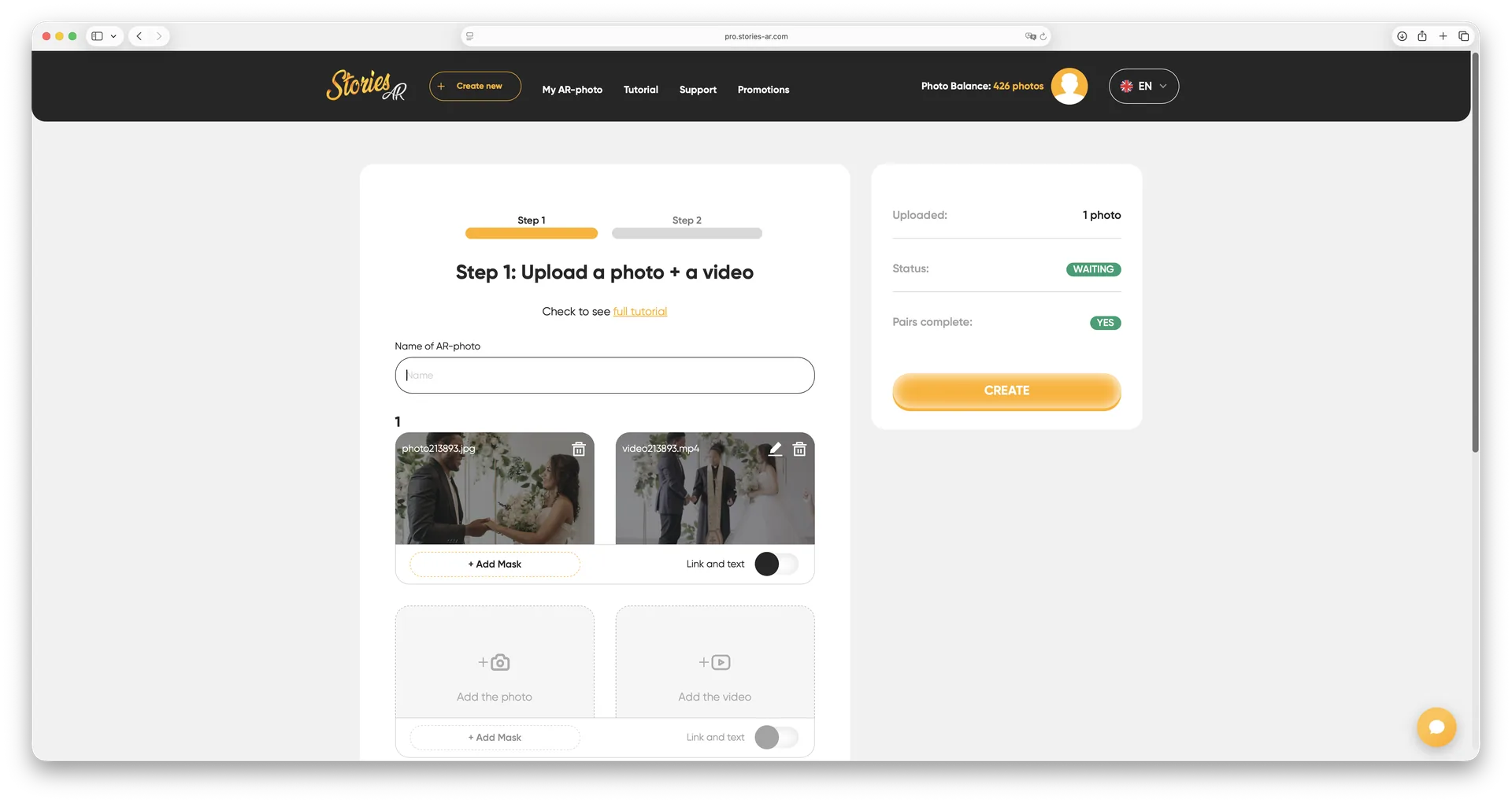
Sign in at pro.stories-ar.com, create a new AR photo and upload both files: the still as the trigger image, the exported clip as the video. The built-in editor lets you trim the clip and set the marker frame so the print appears to wake up exactly where the paper image freezes.
In about two minutes you get a link and a QR code. Print the still as you normally would — photo paper, magnet, canvas, anything from business-card size up — and place the QR code on the print, the frame or the back.
That is the whole pipeline. When someone scans the code, the browser opens the camera, they point it at the print, and your three seconds of motion and sound play right on the paper. Want to feel the result before uploading your own? Scan the live demo first.
Limits — and how to beat them
Be honest about the constraints of the Live Photo source:
- Length: ~3 seconds is a blink. It works for a smile or a gust of wind, but a 10–30 second clip is far more satisfying to watch.
- Quality: Live Photo video is captured at lower quality than normal iPhone video — fine on a phone screen, visible on close inspection.
- The fix for both: if you also shot regular video of the same scene, pair the printed frame with that longer clip instead. The trigger image doesn't care where the video came from.
- Upgradability: the QR code never changes, so you can start with the 3-second Live Photo clip today and swap in a longer edit later — no reprinting.
What people actually print this way
The everyday moments iPhones catch by accident are the point: a kid blowing out birthday candles, a dog's head tilt, grandparents waving at the camera, confetti falling at a graduation. These clips already exist in your camera roll — printing them as living photos rescues them from the archive.
Popular formats: framed prints for the wall, fridge magnets, postcards sent to family, and gift prints where the recipient discovers the motion on first scan. Photographers use the same workflow at scale — more than 62 000 of them are on the platform — but for personal printing, the free tier's first AR photos are enough to start.
One tip for gifts: add a small "scan me" note next to the QR code. The discovery moment — a still photo suddenly moving and speaking — is the entire gift.
Print your favorite Live Photo
Export the still and the clip, upload both — your printed photo plays the moment in about two minutes. First AR photos are free.
Start for freeFrequently asked questions
Can I print a Live Photo so it moves on paper?+
Not on the paper itself — but you can print the still with a QR code, and the motion plays in the browser when the print is scanned. Sound included.
Do viewers need an iPhone to see it?+
No. Unlike Apple Live Photos, the printed AR photo plays in any phone browser — Safari on iOS, Chrome on Android — with no app.
How do I get the video out of a Live Photo?+
Open the Live Photo in the Photos app, tap share and choose "Save as Video". Export the key frame at full resolution as the still.
Can I use a longer video instead of the 3-second clip?+
Yes, and it is usually better. Pair the printed frame with any video from the same scene — and you can replace it later without reprinting.